
VigiaOT iScanner
Getting started with VigiaOT iScanner
From installing to your first vulnerability report — about 20 minutes. The free version covers steps 1–5; the trial adds steps 6–7.
1. Install
- Download the installer from the link in your email.
- Before running it, check that the file is ours and unchanged: its SHA-256 must match the one in the email and on the download page. Windows (PowerShell): Get-FileHash .\<installer> -Algorithm SHA256
- The installer is not code-signed yet, so Windows may show "Windows protected your PC" — choose More info › Run anyway.
- Install on the laptop you will take to the plant. It needs no internet to scan.
2. First start: your user
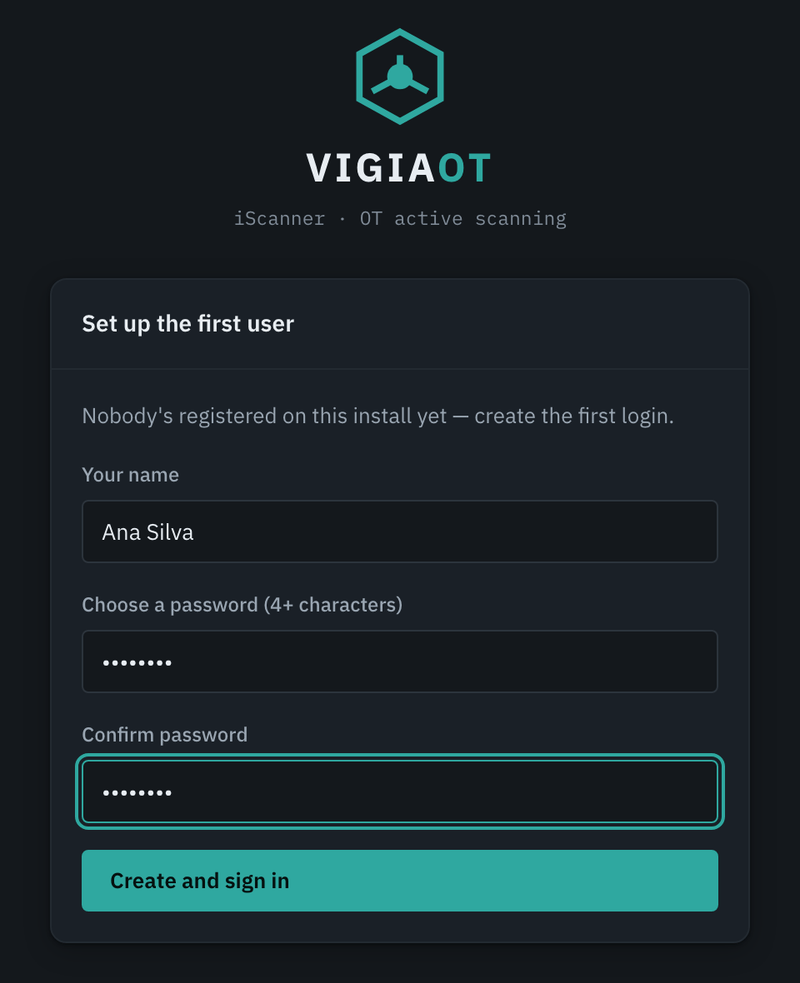
On first start, create the first user: your name and a password (4 or more characters). iScanner asks for it every time it opens, so the laptop's data is protected if it is left unattended. Colleagues are added later in Settings › Generic › Team.
3. Scan a cell
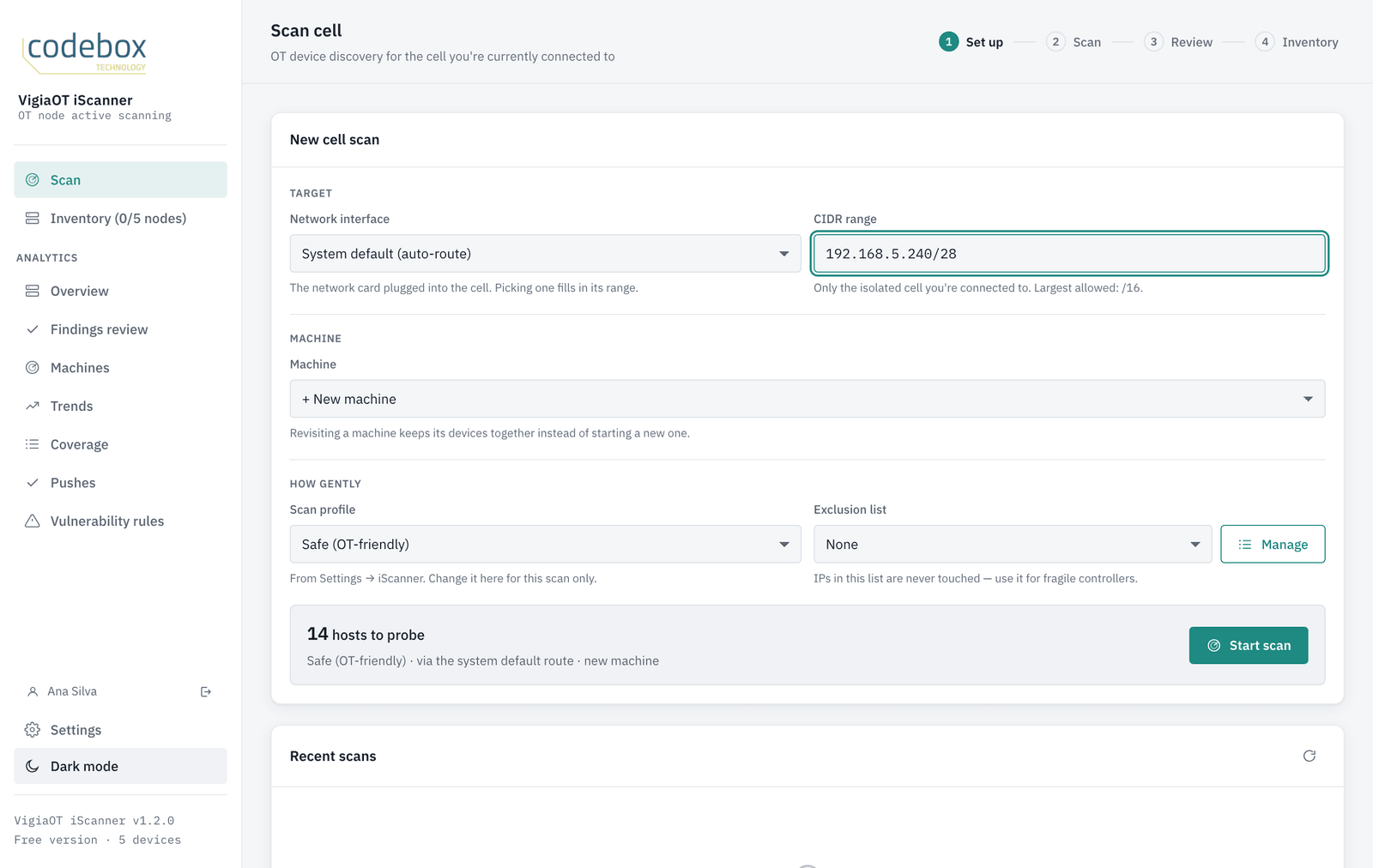
Connect the laptop to the cell's network, open Scan and fill in:
- Network interface — the network card plugged into the cell; picking one fills in its range.
- CIDR range — only the cell you are connected to (e.g. 192.168.10.0/24; the largest allowed is /16).
- Machine — "+ New machine" the first time; choose it again when you come back, so its devices stay together.
- Scan profile — keep Safe (OT-friendly). Exclusion list — IPs that are never touched; use it for fragile controllers.
iScanner only reads: it identifies devices over their own protocols (S7, EtherNet/IP, FINS, ADS, Modbus, OPC UA, BACnet…) and never writes to them. Still, agree a window with the plant before scanning a live production network.
4. Review and confirm
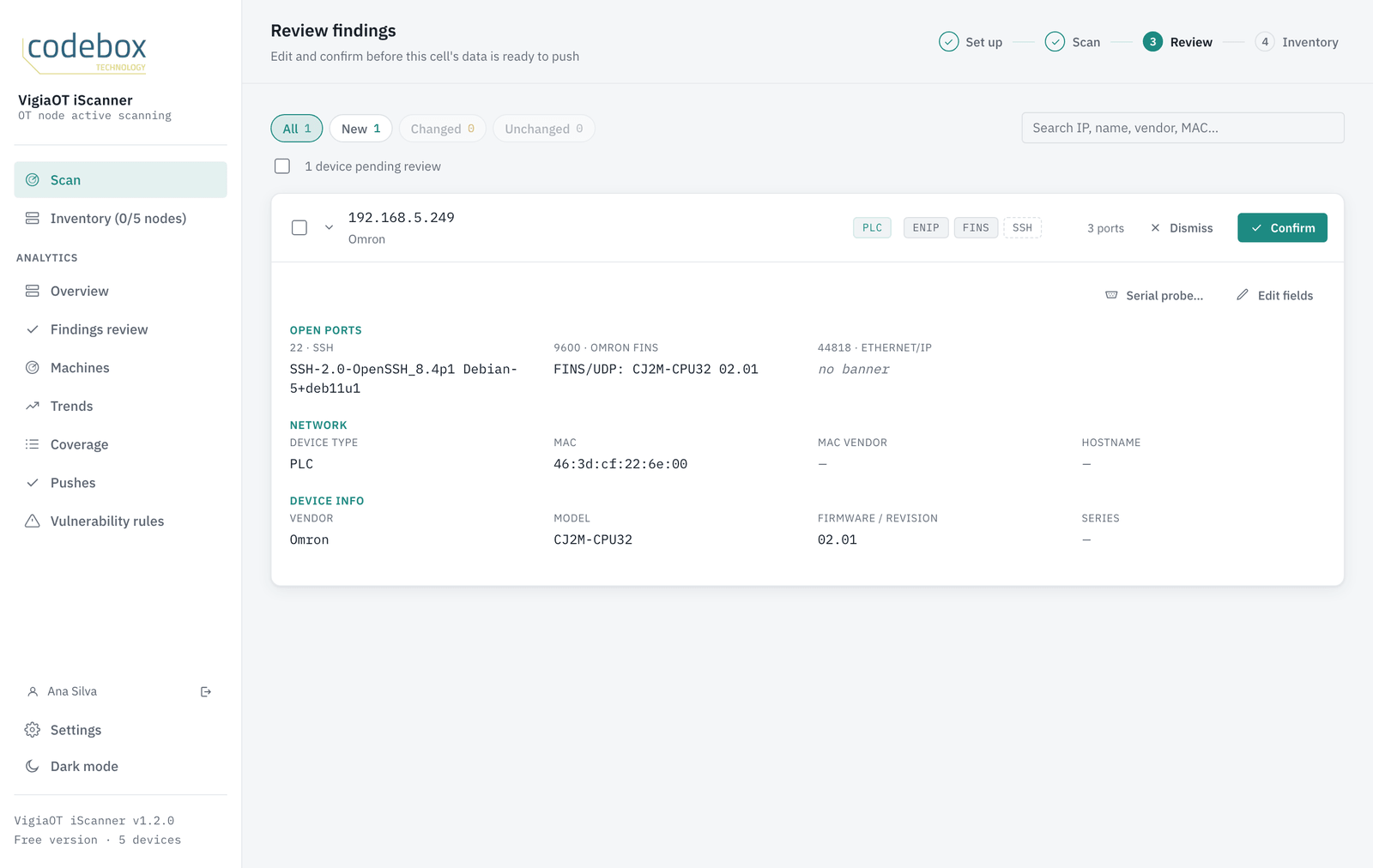
When the scan ends, choose Review findings. Expand a device to see what was read from it — open ports, vendor, model, firmware. Confirm what belongs to the inventory; Dismiss the rest. Edit fields adds what a scan can't know (asset number, owner…).
The first time you confirm devices from a scan, iScanner asks which machine they belong to: choose "This is a new machine" and give it a name (e.g. "Packaging line 2 — PLC cabinet").
5. Your inventory
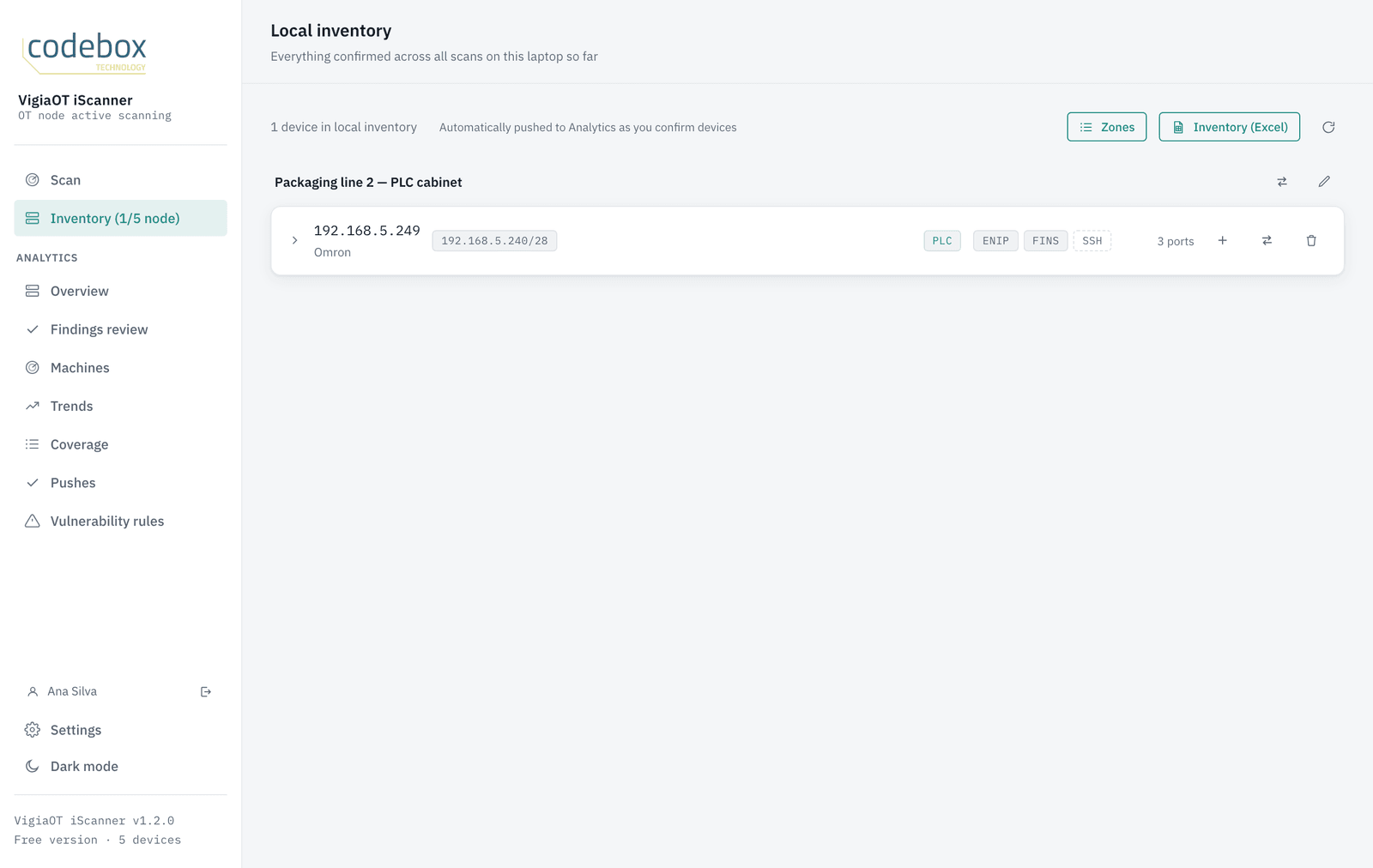
Inventory lists everything confirmed on this laptop, by machine. Inventory (Excel) exports it as audit evidence — scope, devices, change log and a compliance mapping (NIS2, IEC 62443). Zones groups machines into IEC 62443 zones.
The free version keeps up to 5 devices in the inventory. Scans and the review always show everything — only confirming more than 5 needs a trial or a license.
6. Ask for the 30-day trial
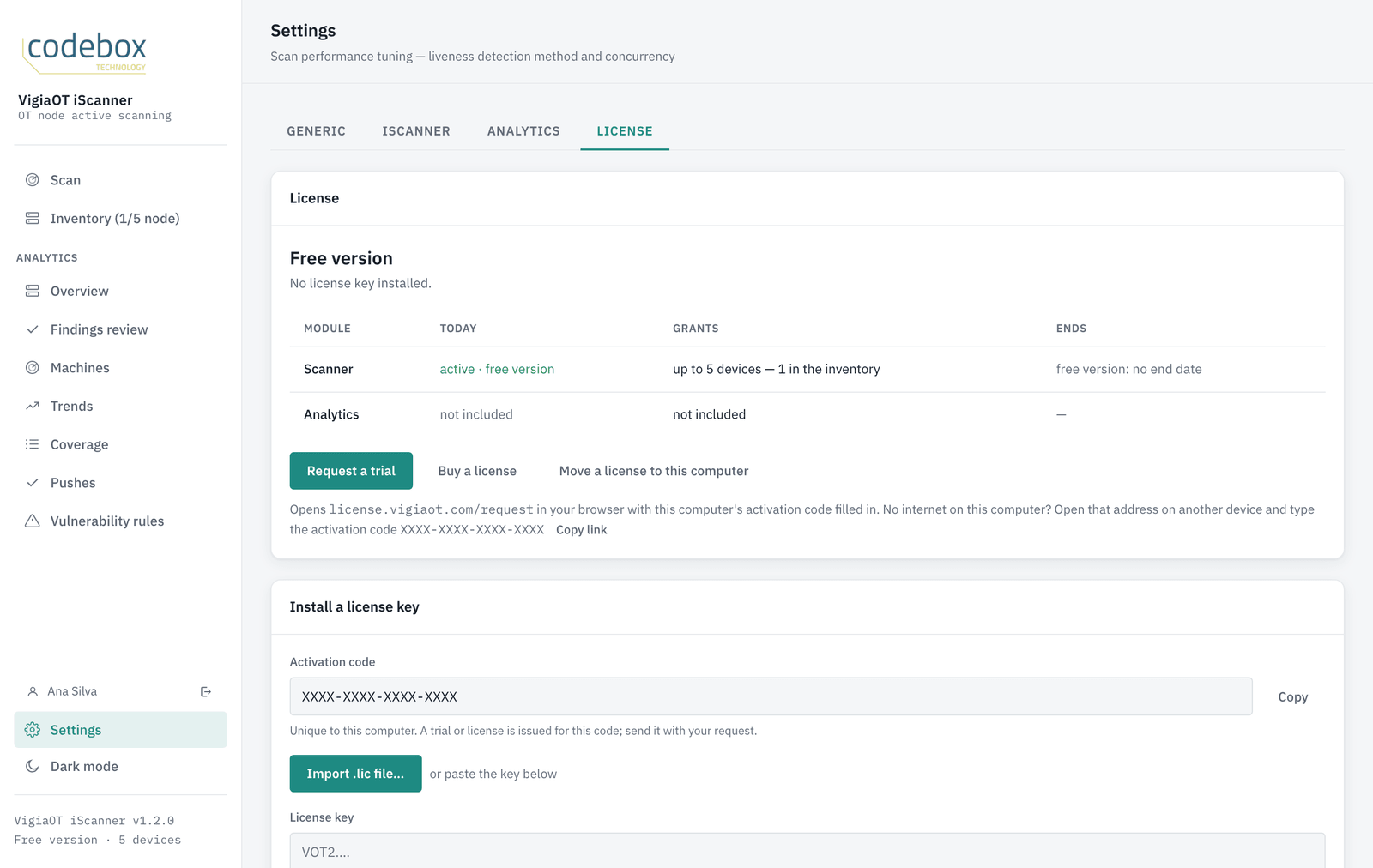
Analytics (the vulnerability analysis) and more devices come with the trial. In iScanner open Settings › License and choose Request a trial: the request page opens in your browser with this computer's activation code filled in. No internet on this laptop? Use Copy link and open it on another device.
We review trial requests and send the key by email, with the .lic file and a license certificate. Paste the key under Install a license key and choose Install key (or Import .lic file…). The inventory you confirmed so far goes to Analytics straight away.
7. Vulnerabilities
With the trial, confirmed devices are sent to Analytics automatically. In Analytics › Overview choose Check new & changed (or Check all): each device is checked against the US NVD and CISA's Known Exploited Vulnerabilities list. It takes a few minutes and needs internet. The EU's database (ENISA EUVD) can be added in Settings › Analytics.
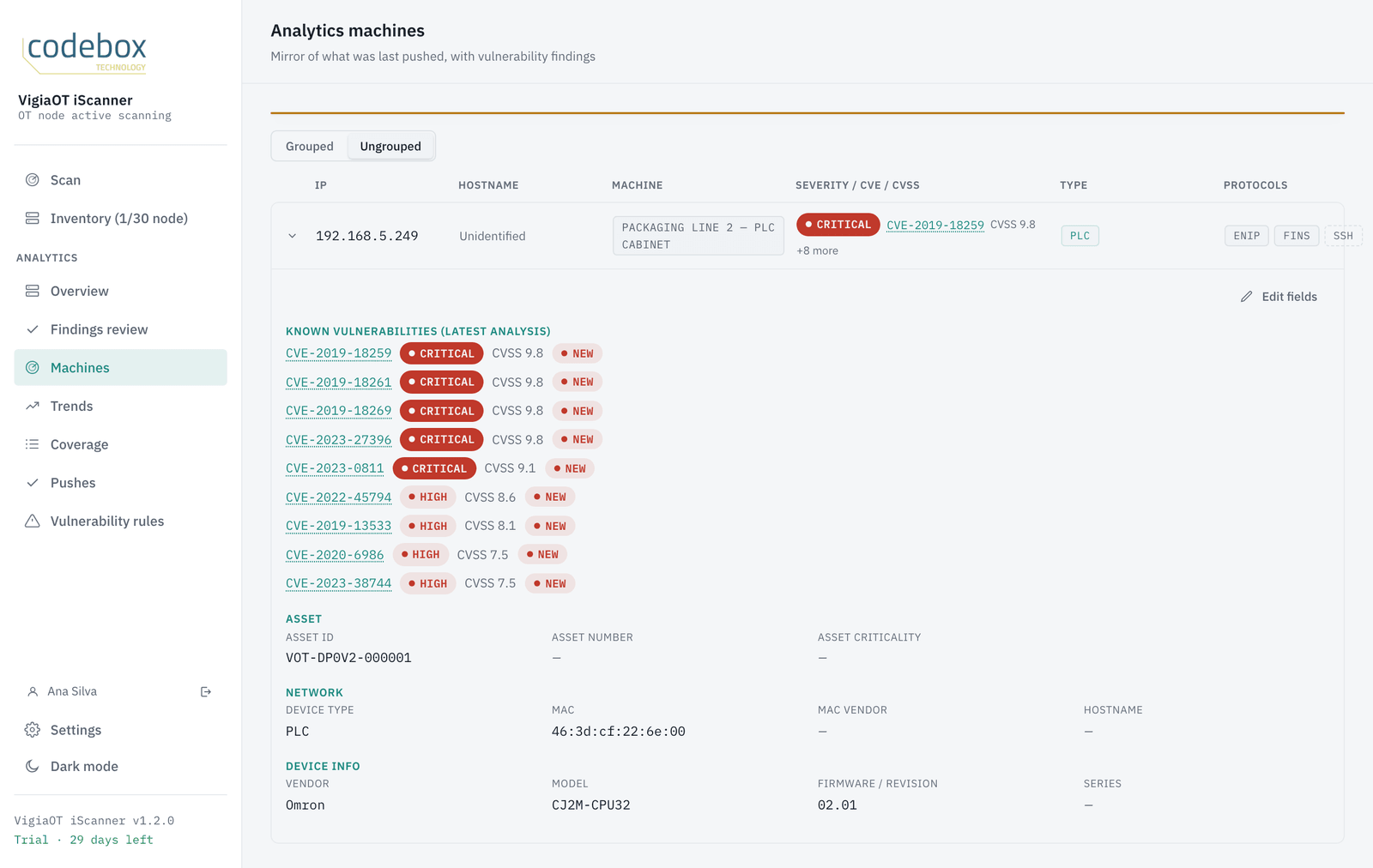
Analytics › Machines shows each device's CVEs with severity and CVSS score; Findings review is where you record what you decide for each one (accepted risk, mitigation planned, remediated, false positive). Overview has the reports: Summary (PDF) and Site report (Excel).
Need a hand?
Reply to any of our emails — we answer within one business day. Or let us show you on a 30-minute call.
Request a demo Prefer email? codebox@codebox.pt